Facebook Link Update
Meta, owner of Facebook and Instagram, is changing the way we use links on their social platforms. With the launch of Meta One, a tiered subscription service, Facebook pages will only be allowed two links per month across posts and comments.
Please note: This change does not affect your personal Facebook or Instagram account (also known as a profile).
What this means for Facebook pages:
- Accounts will get two free external link posts/comments per month. This means if you comment a link, that counts as one of your monthly links.
- The limit resets at the first of every month.
- Unused links do not roll over into the next month.
- Links to Meta-owned platforms (Facebook, Instagram, or Threads) are unlimited.
- Example: If you post and link to a Facebook Event, that does not count towards your limit
- Facebook event ticket links are not affected.
What this means for Instagram pages:
Links have never been allowed on Instagram posts, so it is the same as before. You can continue to point people to the link in your bio.
Sharing Links with the Update
There are several free and easy ways to continue sharing links to your page. Our top recommendations are:
- Direct people to the link in your bio
- Create Facebook Events and use the ticket link
- Share posts to stories and add a link sticker
DO NOT add links to images as QR codes or plain text. These are not accessible and don’t perform well.
Direct people to the link in your bio
Update the link in your bio to match your page, and direct people to click the link in your bio in your posts.
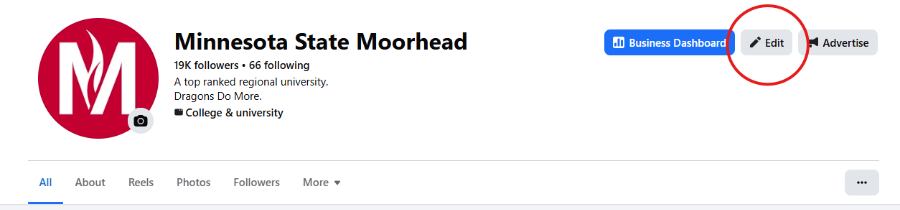
Click “Edit” in the right corner of your profile.
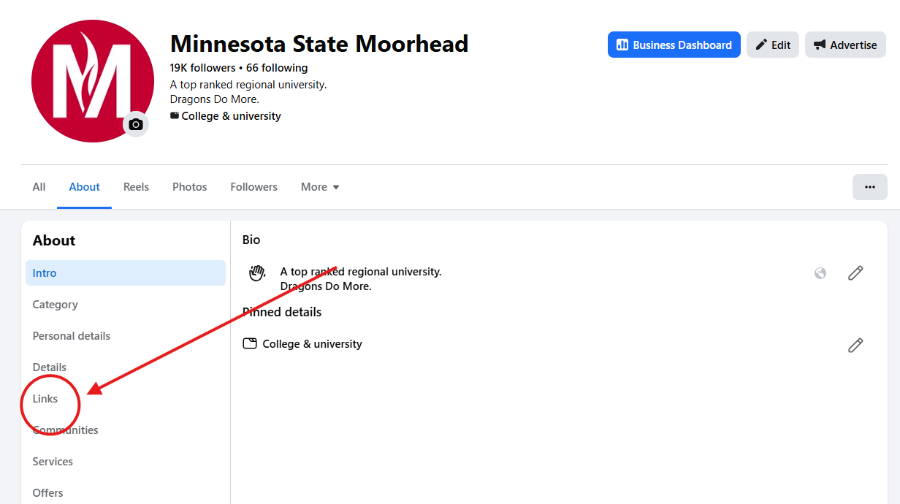
Select links from the list.
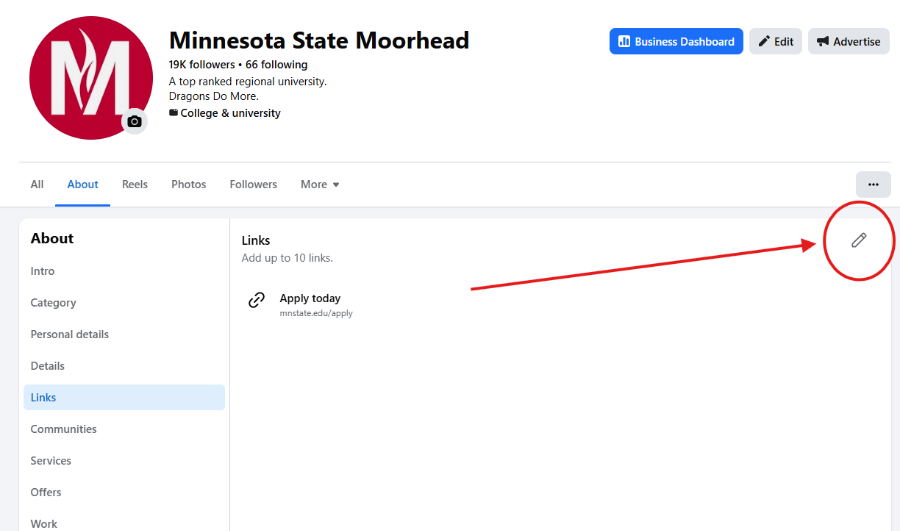
Click the pen in the right corner.
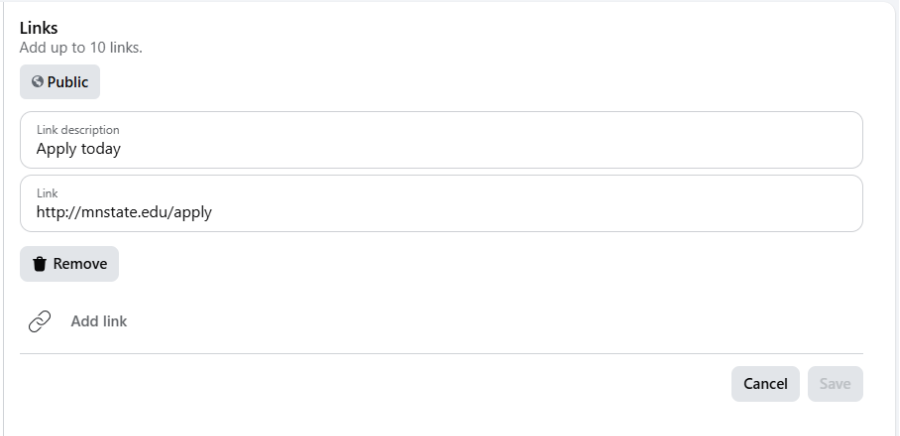
Customize your link(s).
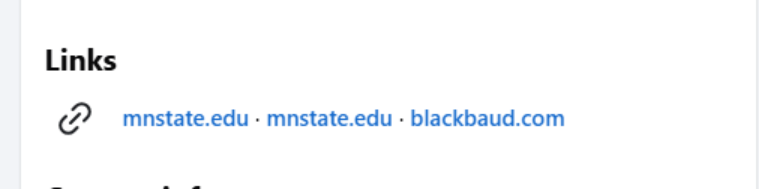
NOTE: While you can add up to 10, we recommend prioritizing 1 to 3 links, so it’s not too difficult for people to find the link they want, since the link previews aren’t always clear. In the screenshot below, all three links are different, but two of them look the same.
Create Facebook Events
Are you promoting an event and trying to share a ticketing/Zoom link? Facebook Events are a great tool, especially since ticket links don’t count towards your limit. Once the event is created, you can promote it by sharing it to your page.
Creating the event and adding the ticket link
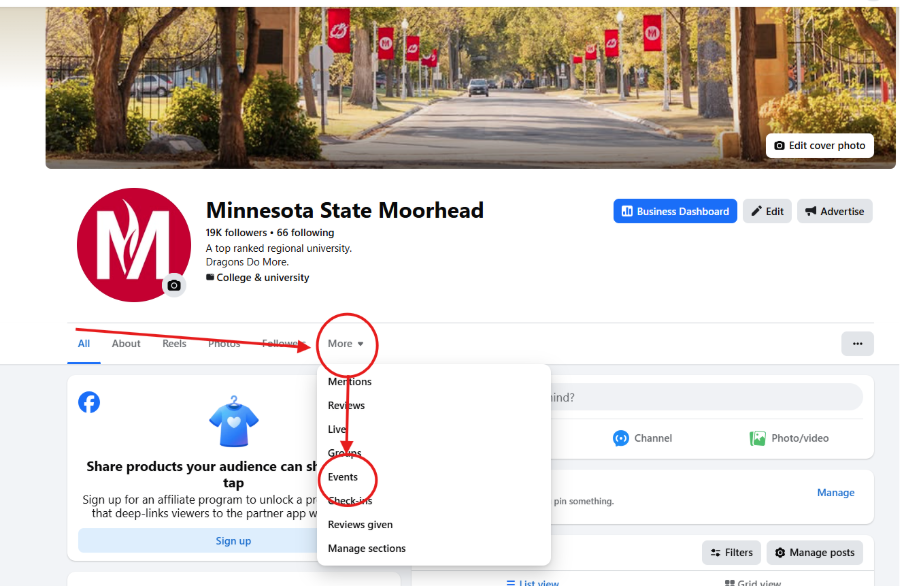
Go to your profile and click “More”, then select “Events” from the drop-down menu.
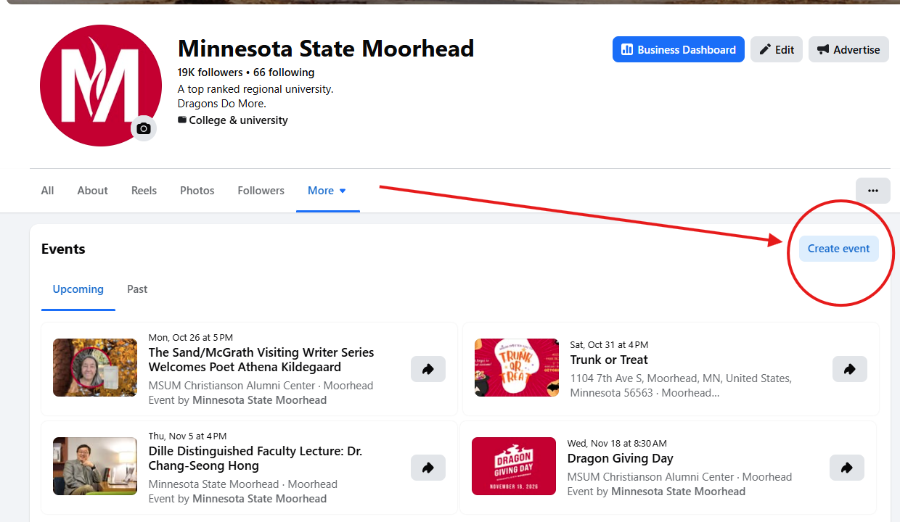
Click “create event.”
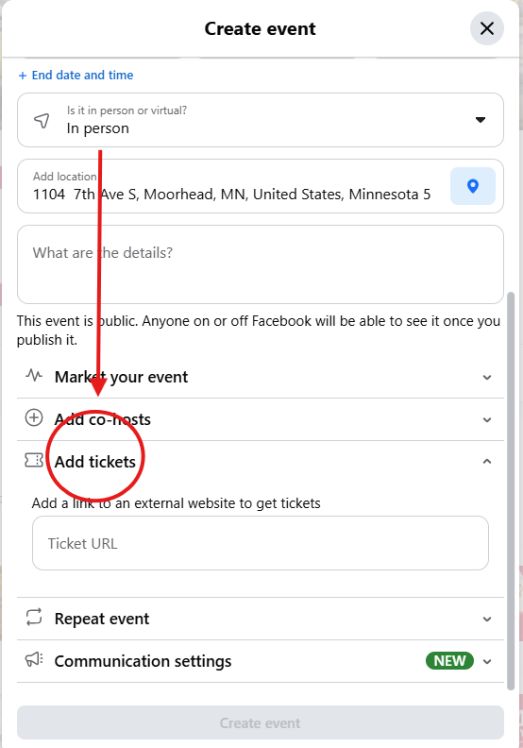
After you fill in the event info, click “add tickets” and add your link. Then, click “create event.”
Sharing the event
The Facebook event is automatically shared to your page the day you create the event. To continue sharing the event, follow the directions below.
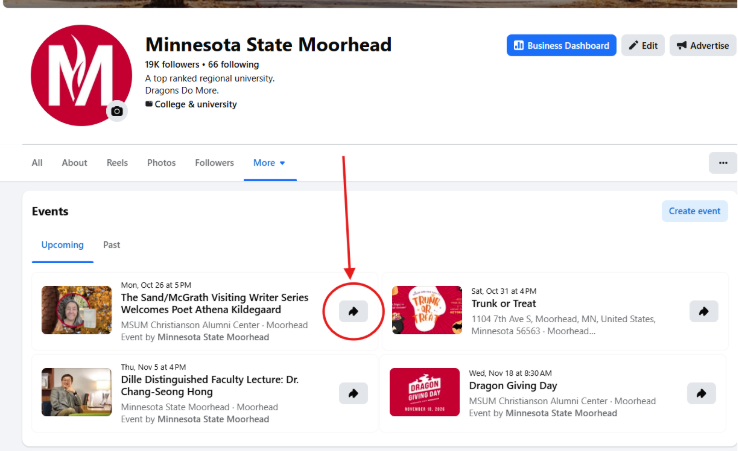
You can share an event by going to your events page (as shown above) and clicking the arrow next to the event.
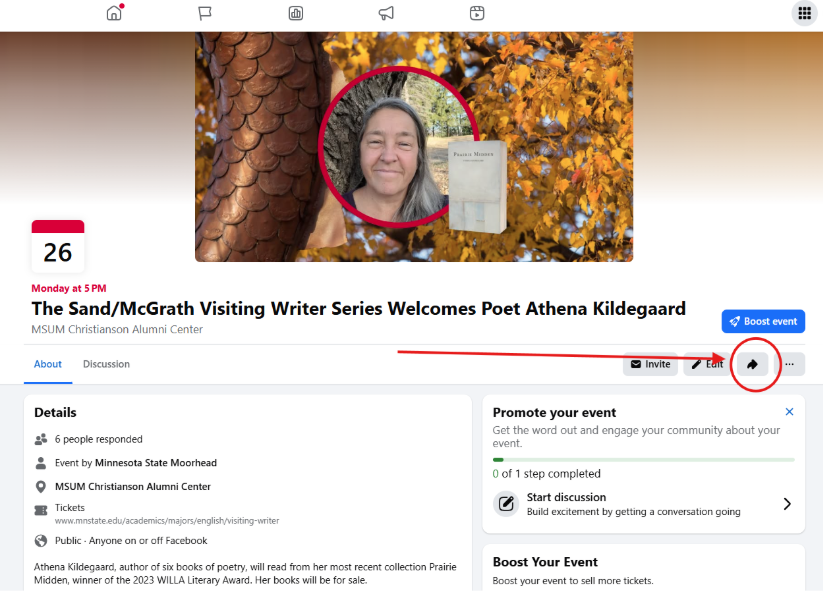
You can also share your event by going to the event page (clicking on the event name instead of the share button) and pressing the share button there. This is also how you’d edit an already created event.
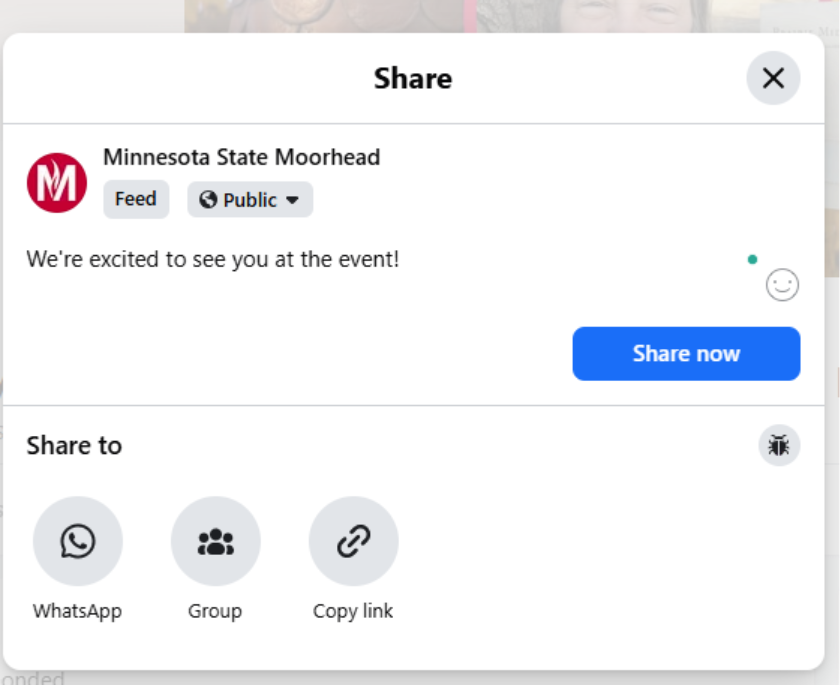
Type your message and press “Share now.”
Sharing Posts to Stories (Mobile Only)
You can share any post to your story by pressing the “Share” button, then selecting “Story.” This option will only work if you do it from your phone.
For instructions on adding link stickers, check out this “how to” from Facebook.
When does the link limit roll out?
It has been gradually rolling out since September. It’s expected to be fully rolled out by December.
Can I comment from my personal account with a link?
Many users are seeing links in the comments as plain text and not clickable. Because of this, it’s recommended to avoid commenting links at all.
Should I pay for a Meta One subscription?
No, we do not recommend paying for Meta One. The cost of the tier to increase your link limit is $50/month and only covers one account. There are other ways to share links for free, as mentioned above.
Who should I contact if I have more questions?
You can contact Ty Filley (email: tyrel.filley@mnstate.edu) or Emily Lauinger (email: emily.lauinger@mnstate.edu) for any additional questions.